
Automating Daily Office Tasks with Google Apps Script
Published:
With the growing dependence on cloud-based productivity tools, automation has become crucial to improving efficiency and reducing manual workloads. Google Apps Script, a JavaScript-based scripting language for the Google Workspace platform, offers powerful capabilities to automate repetitive tasks in Gmail, Sheets, Calendar, Forms, and Docs. This paper explores practical applications of Google Apps Script in a typical office setting. It provides an overview of top tasks that can be automated, compares with related automation tools, outlines a practical approach, demonstrates examples, and concludes with recommendations for integrating Apps Script into daily workflows.
1. Introduction
Modern office environments demand speed, accuracy, and adaptability. Many professionals still perform repetitive tasks like sending reports, updating calendars, or organizing emails manually—leading to wasted time and human error. Google Apps Script is a cloud-based tool that enables office automation directly within Google Workspace, allowing users to script solutions tailored to their workflow.
This paper introduces the most effective use cases for Google Apps Script, demonstrating how it can streamline daily office operations such as reporting, data cleanup, scheduling, and communication.
2. Related Work
Numerous automation tools exist in the ecosystem:
Zapier and IFTTT provide no-code solutions for inter-app automation.
Microsoft Power Automate offers robust integration within Microsoft Office.
Python with APIs can handle complex tasks, but requires hosting and setup.
Compared to these, Google Apps Script is uniquely embedded within the Google ecosystem, offers fine control over Workspace apps, and is free to use without additional infrastructure.
3. Approach
The approach consists of identifying common manual tasks and designing lightweight Apps Script functions to automate them. Key criteria include:
Repetitiveness of the task
Integration with Gmail, Sheets, Calendar, or Forms
Potential time savings
The following tasks were selected based on frequency and impact in typical office work:
Automated Email Reports
Email Cleanup and Labeling
Calendar Event Scheduling
Form Response Acknowledgement
Data Monitoring and Alerts
PDF Generation (Invoices, Certificates)
Daily Backup Logging
4. How to use
Step 1: Access to Appscript through Google Sheets 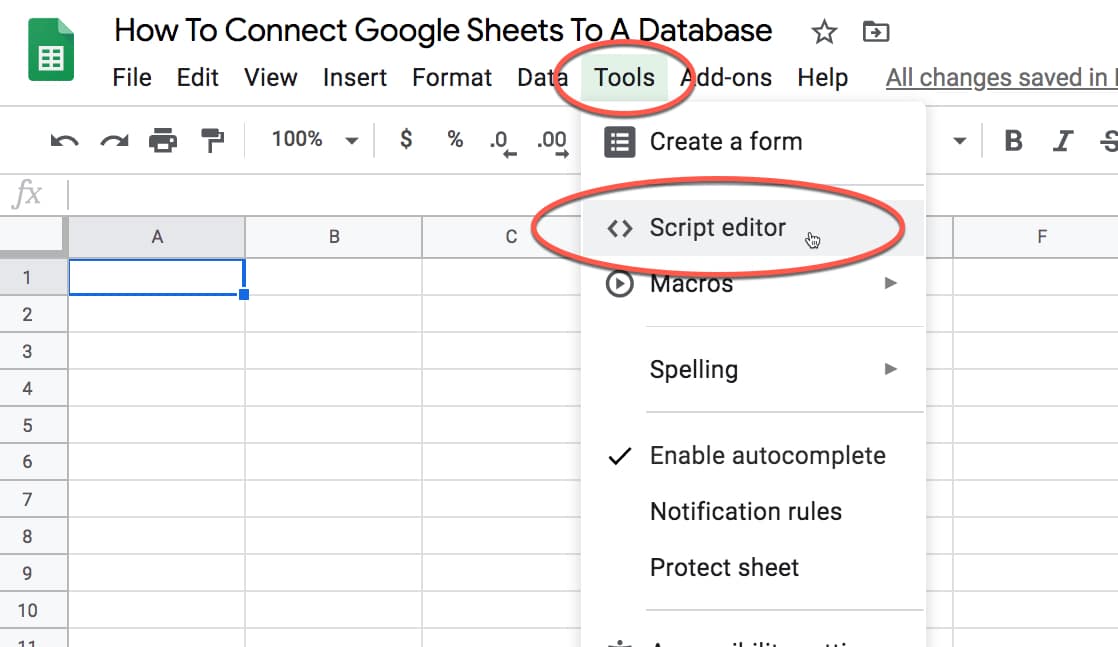
Step 2: Manage file, write code and run function 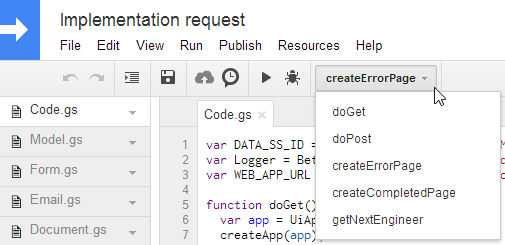
5. Experiments / Examples in Daily Office
5.1 Automated Email Reports
Use Case: Send daily/weekly summary reports from Sheets.
function sendReport() {
  const sheet = SpreadsheetApp.getActiveSpreadsheet().getSheetByName("Summary");
  const data = sheet.getRange("A1:B10").getValues();
  let body = "Weekly Summary:\n\n";
  data.forEach(row => body += row.join(": ") + "\n");
  MailApp.sendEmail("manager@example.com", "Weekly Report", body);
}
5.2. Auto Email Cleanup
Use Case: Archive promotional or outdated emails.
function archivePromos() {
  const threads = GmailApp.search('label:Promotions older_than:14d');
  threads.forEach(t => t.moveToArchive());
}
5.3. Calendar Event Scheduling
Use Case: Create events from a spreadsheet.
function scheduleMeeting() {
  const sheet = SpreadsheetApp.getActiveSpreadsheet().getSheetByName("Meetings");
  const [title, date, time] = sheet.getRange("A2:C2").getValues()[0];
  const calendar = CalendarApp.getDefaultCalendar();
  const startTime = new Date(`${date} ${time}`);
  calendar.createEvent(title, startTime, new Date(startTime.getTime() + 60 * 60 * 1000));
}
5.4. Auto-Responder for Forms
Use Case: Email a thank-you note when someone fills out a form.
function onFormSubmit(e) {
  const name = e.namedValues["Name"][0];
  const email = e.namedValues["Email"][0];
  MailApp.sendEmail(email, "Thank You!", `Hi ${name},\n\nThanks for your submission!`);
}
5.5. Sheet Data Alert
Use Case: Email when a task is due soon.
function deadlineReminder() {
  const sheet = SpreadsheetApp.getActiveSpreadsheet().getSheetByName("Tasks");
  const data = sheet.getDataRange().getValues();
  const today = new Date();

  data.forEach((row, i) => {
    if (i === 0) return;
    const due = new Date(row[1]);
    const daysLeft = (due - today) / (1000 * 3600 * 24);
    if (daysLeft <= 3 && daysLeft >= 0) {
      MailApp.sendEmail("your@email.com", `Task Reminder`, `${row[0]} is due in ${Math.ceil(daysLeft)} days.`);
    }
  });
}
6. My project
👉 Click to relevant project: Good Receipt Using Appscript
7. Conclusion
Google Apps Script enables professionals to automate frequently occurring and time-consuming tasks directly within Google Workspace. With minimal JavaScript knowledge, users can significantly increase productivity and reduce human error. Whether it’s auto-sending reports, cleaning inboxes, managing schedules, or handling form data, the opportunities for efficiency gains are extensive.
As organizations become increasingly digital, lightweight automation with tools like Apps Script will be essential for staying competitive and focused on high-value work.
8. References
Google Apps Script Official Documentation
Google Workspace Developer Blog
Zapier: https://zapier.com
Microsoft Power Automate: https://powerautomate.microsoft.com
Stack Overflow – Apps Script Community Discussions